
How to Create
GA4,
Firebase and
BigQuery Credentials
1 Google Analytics 4 (GA4) API Access
What you'll need:
- Google account with access to Google Analytics
- Google Cloud Console access
- GA4 property set up for your app/website
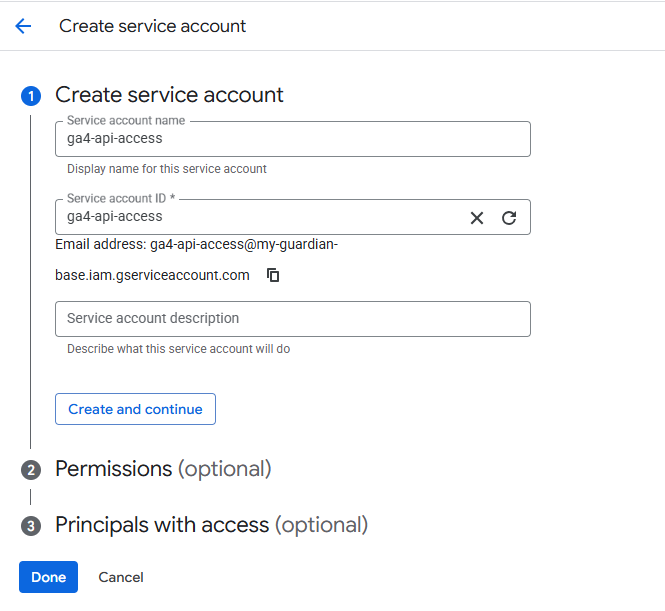
Step 2: Enable GA4 API Access
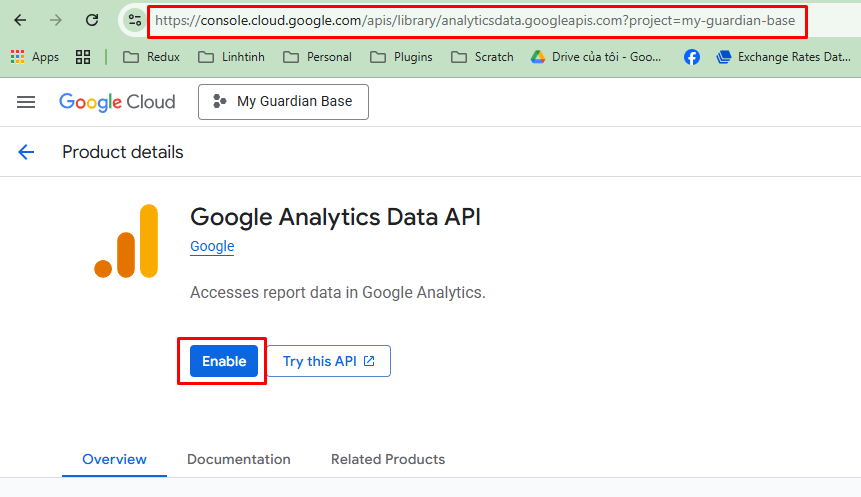
Navigate to Google Cloud Console → APIs Dashboard and search for "Google Analytics Data API", then click ENABLE.
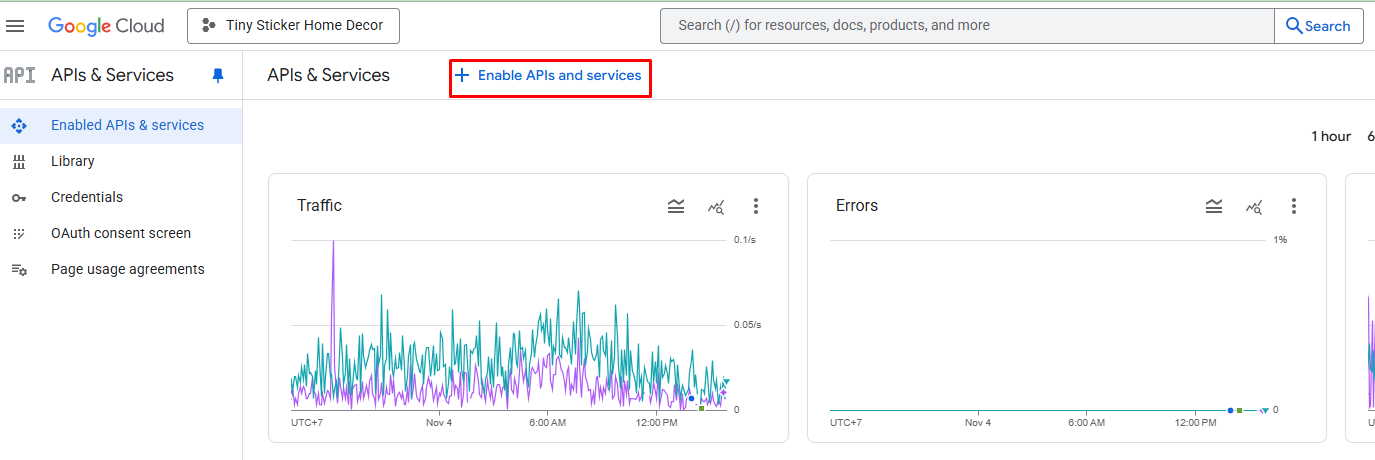
Step 3: Create Service Account Key
Find your service account in Cloud Console, go to the Keys tab, and click Add Key → Create New Key → JSON → Create.
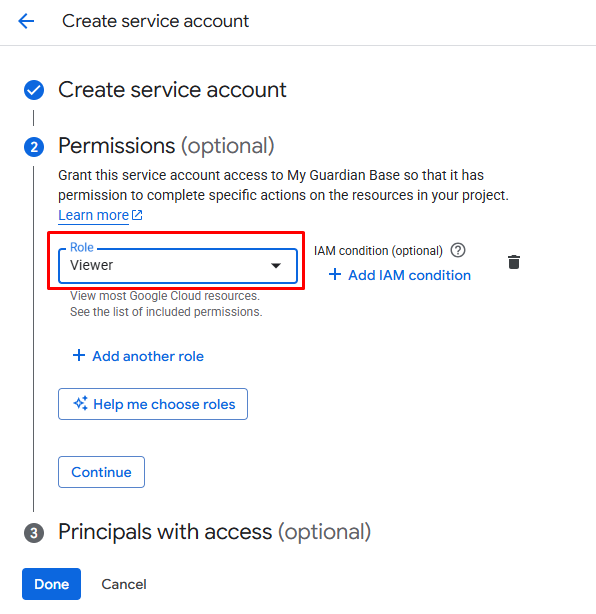
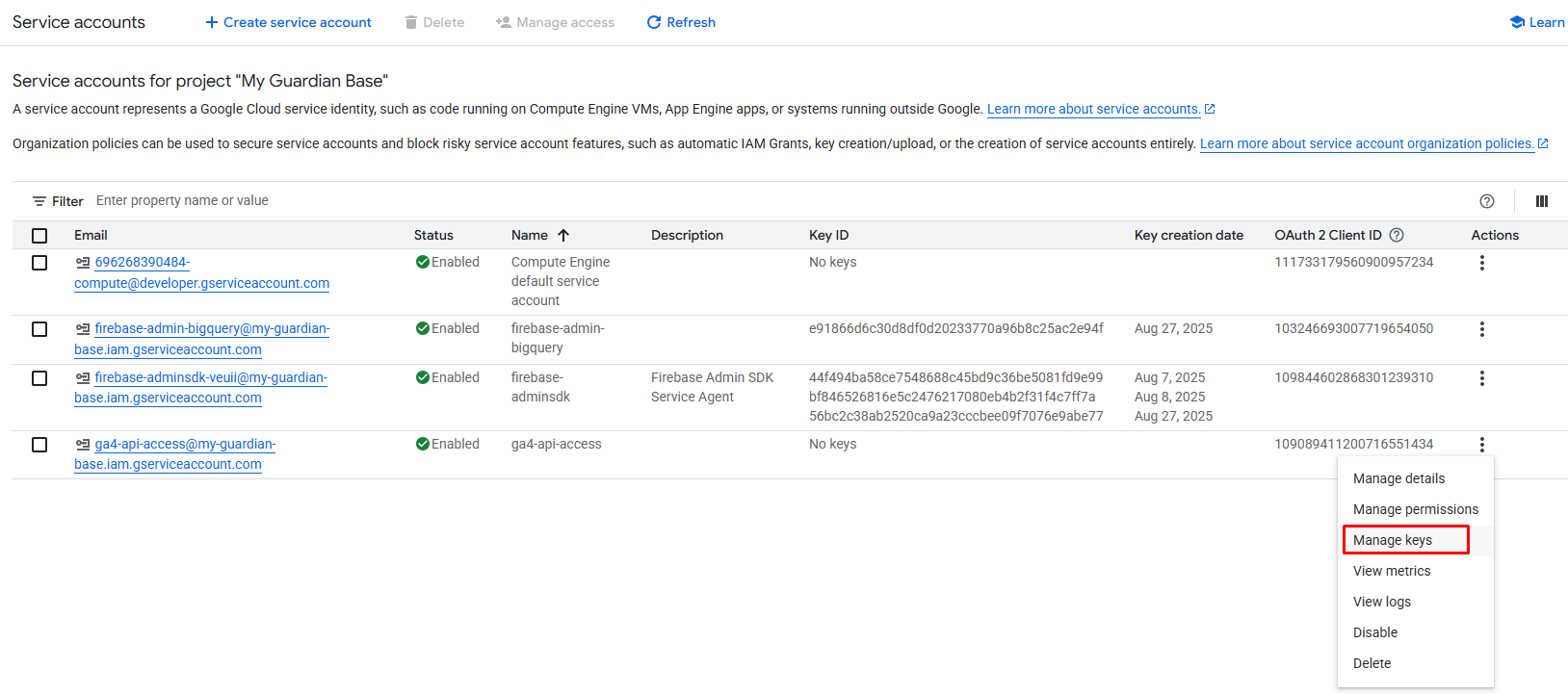
✅ Success: Your GA4 API credentials JSON file will be downloaded!
Step 4: Grant Access to GA4 Property
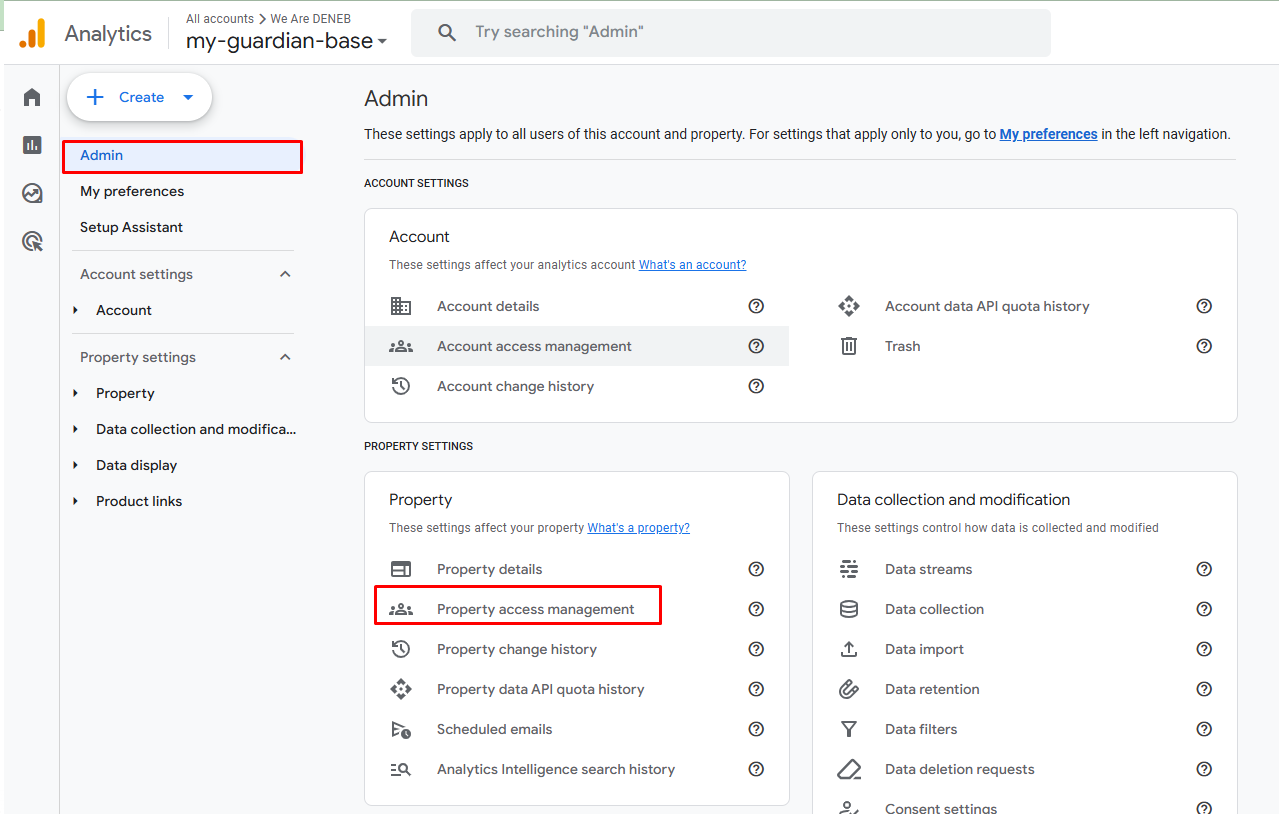
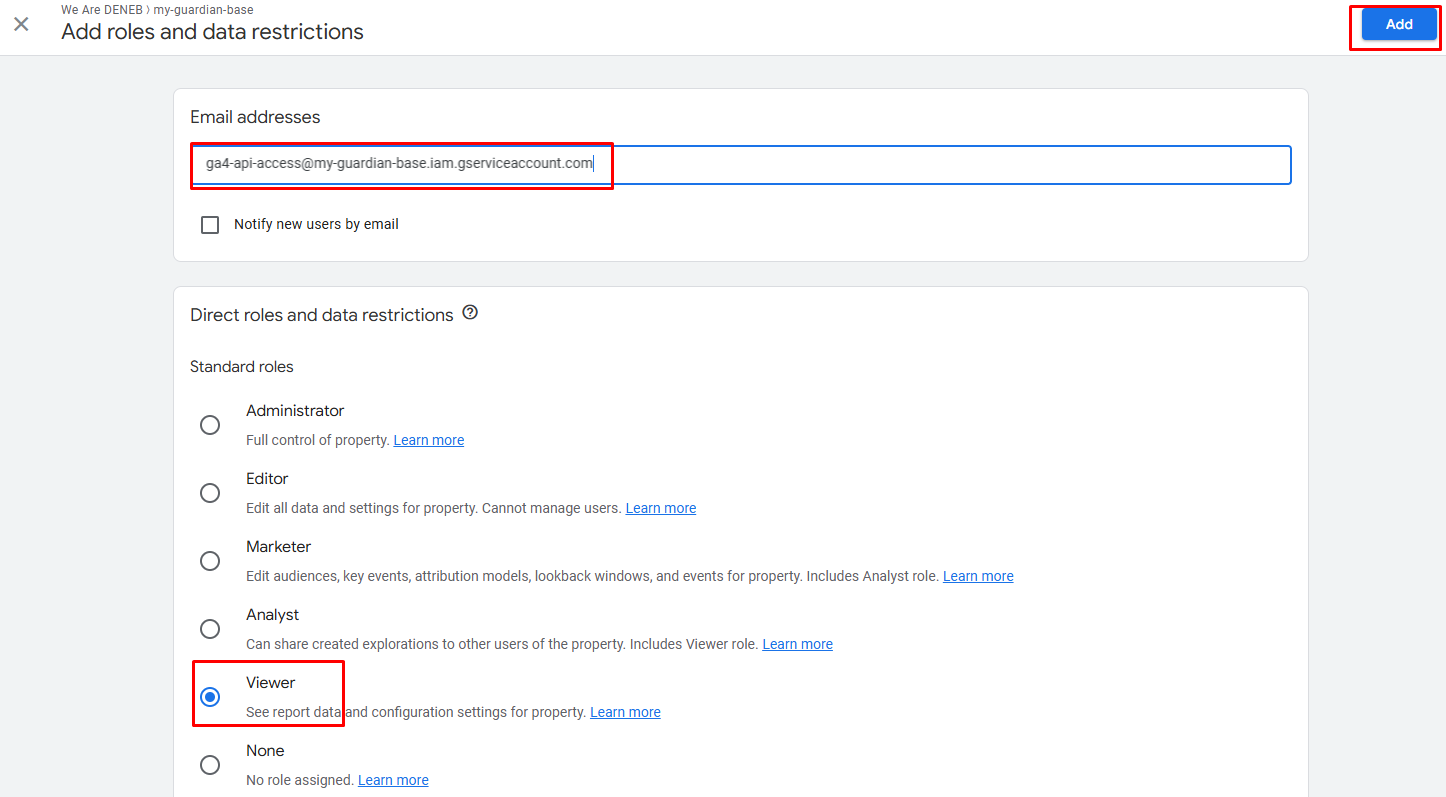
Copy the service account email from your JSON file. Then go to Google Analytics → Admin → Property Access Management and add the email with Viewer permissions.

2 Create a Service Account for BigQuery
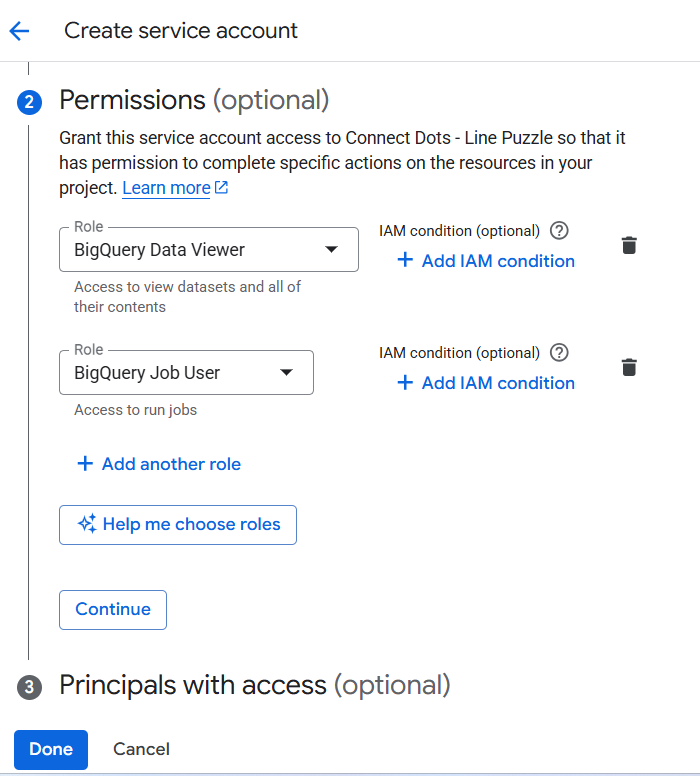
Go to IAM & Admin → Service Accounts and click "Create Service Account".
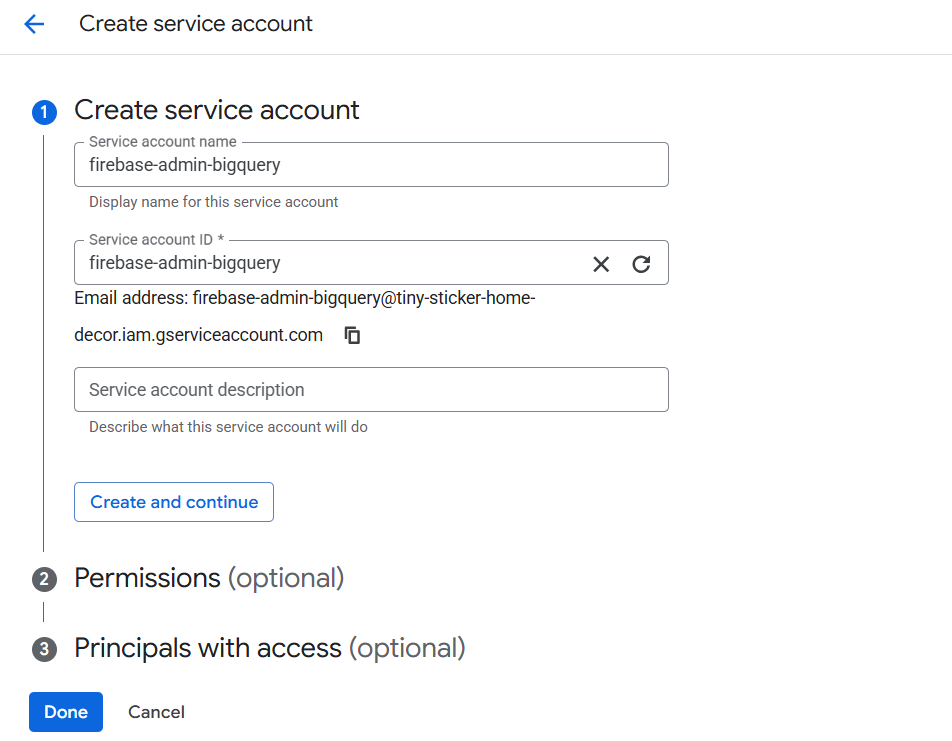
Assign the following roles:
BigQuery Data ViewerBigQuery Job User
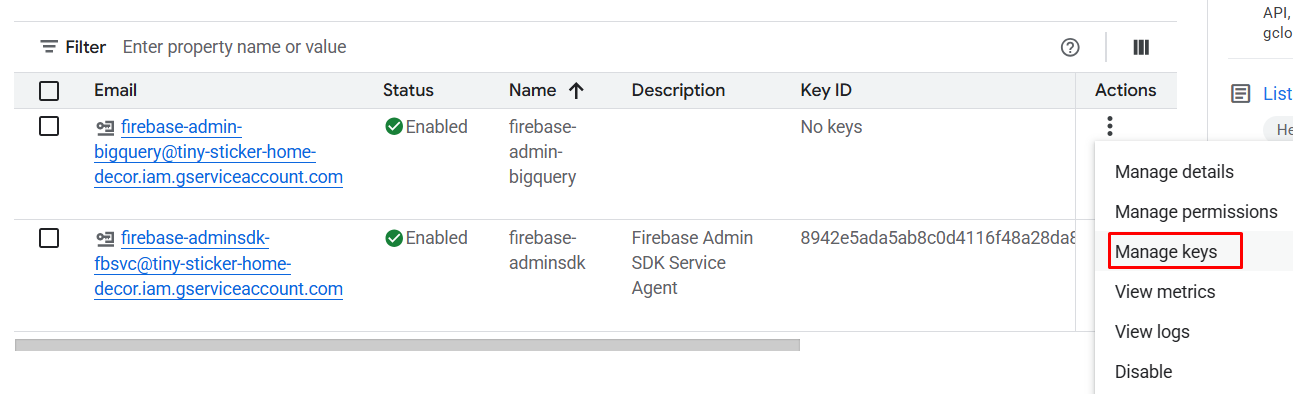
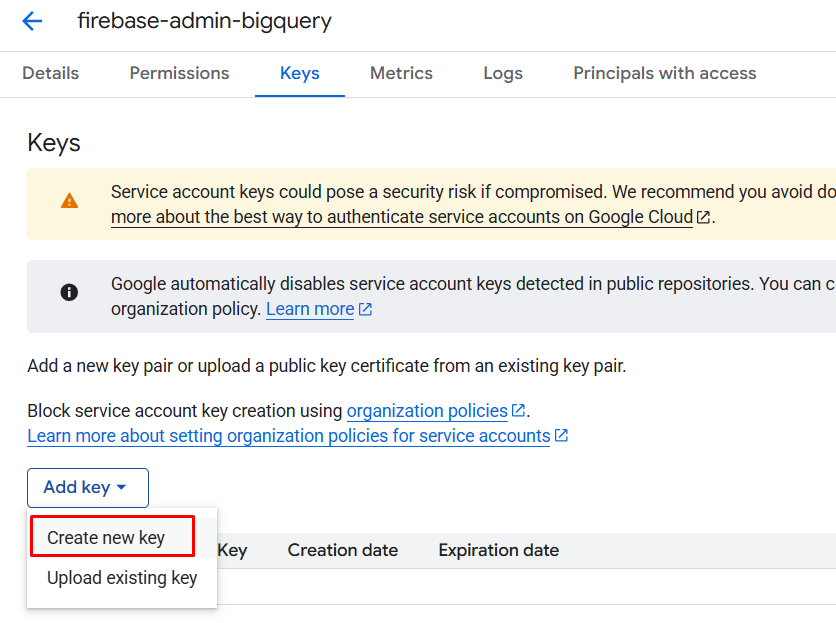
After creation, go to Actions → Manage keys → Add Key → Create new key → JSON.
3 Firebase Admin SDK Credentials
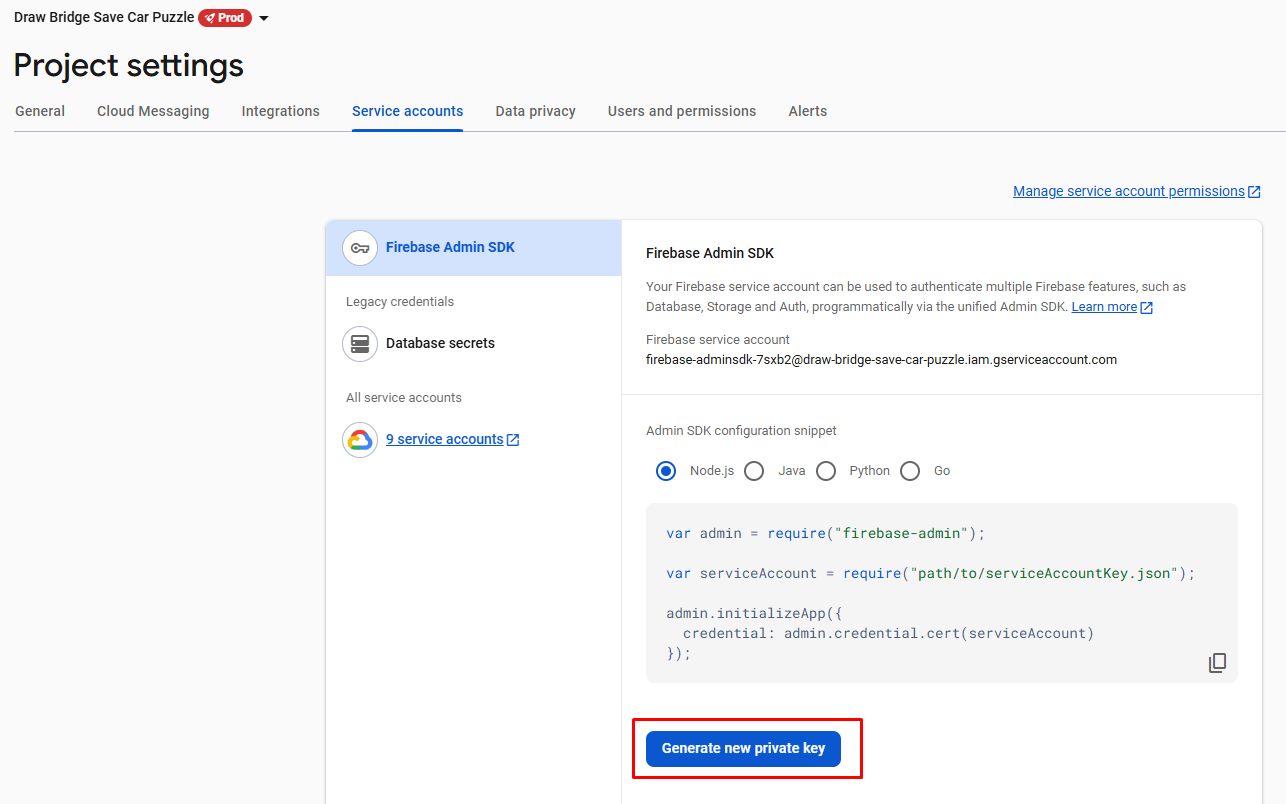
Go to Firebase Console, open Project Settings → Service Accounts, and click Generate New Private Key.
🚀 Next Step: Create Your App Configuration
Once all JSON credential files are ready, upload them to your Metrics Dashboard:
📊 GA4
- Property ID
- API Credentials (JSON)
🔥 Firebase
- Project ID
- Credentials (JSON)
📈 BigQuery
- Project ID / Dataset
- Credentials (JSON)
⚙️ General
- App Name
- Customer ID